How to Create a QR Code for a Link
A QR code can turn a printed or digital surface into a direct connection to your website or online content. Using a short link behind the QR code can also make the destination easier to manage and track.
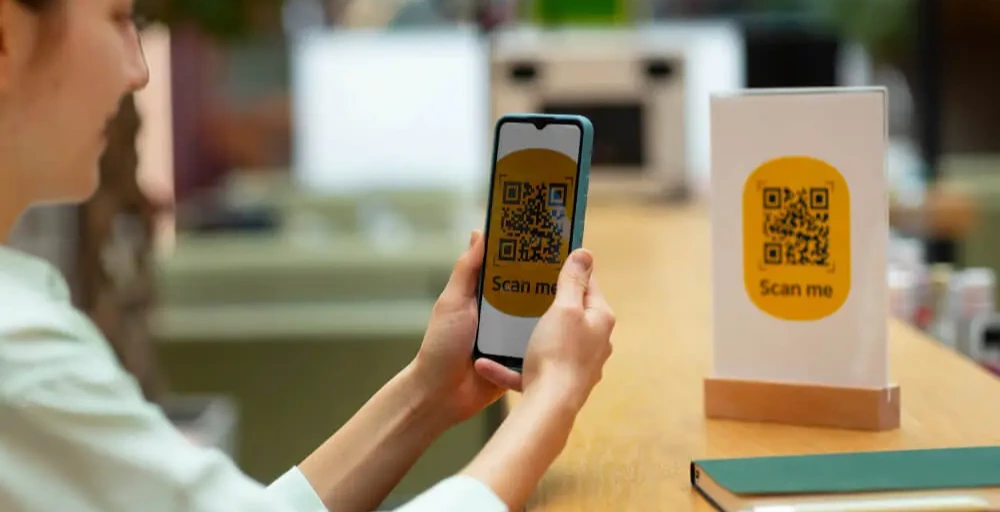

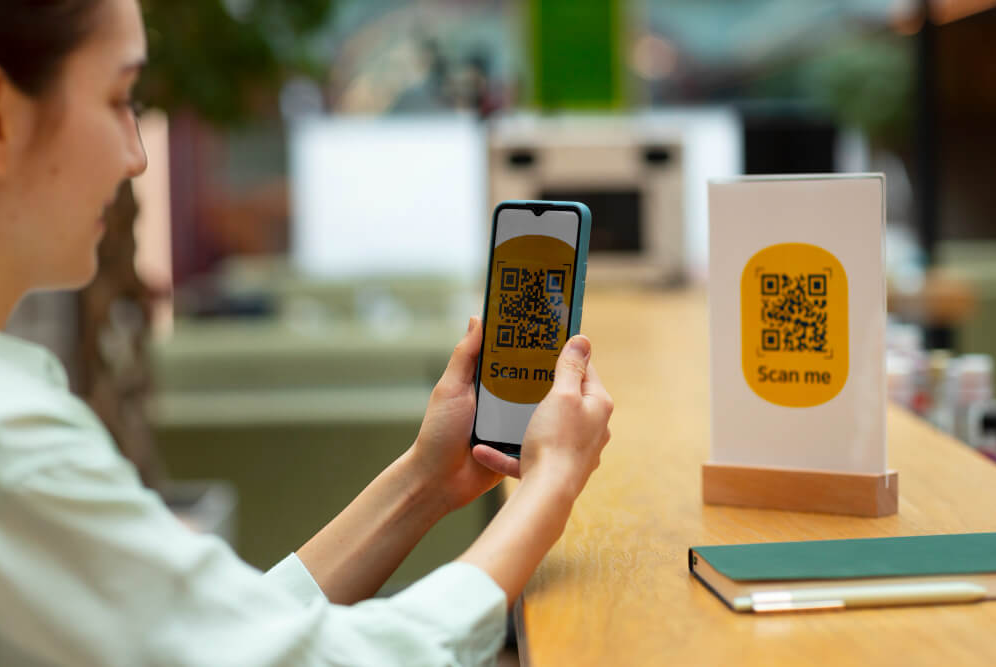
QR codes make it easy to connect physical materials with online content. Instead of typing a long web address, people can scan a code with their phone and open the linked page.
A QR code can be used for websites, menus, event pages, product information, forms, booking pages, and other online destinations. When you create the QR code through a short link, you can also make the link easier to manage and track.
This guide explains how link QR codes work, how to create one, where to use them, and how to track QR activity.

Why Create a QR Code for a Link?
A QR code provides a quick way to access a web page from a physical or digital surface.
For example, a restaurant can place a QR code on a table that opens its online menu. An event organizer can add one to a poster that leads to the event page. A business can put a QR code on packaging that opens product instructions.
QR codes can be useful for:
- Websites and landing pages
- Online menus
- Event registration and ticket pages
- Product information
- Booking pages
- Digital forms
- Promotions and special offers
- Business cards
- Posters and flyers
- Packaging
- Printed brochures
- Presentations and digital documents
When a QR code is connected to a short link, the short link can act as the destination behind the code.
How Link QR Codes Work
A QR code does not normally contain the entire visual appearance of a website. It stores information that a scanner can read, such as a URL.
The basic process looks like this:
Website URL → Short link → QR code → Scan → Destination page
For example: https://example.com/products/summer-collection
can become: me-l.co/summer
The short link can then be converted into a QR code.
When someone scans the code, their phone opens the short link, which redirects them to the destination page.
This approach can be particularly useful for printed materials because the QR code can continue to point to the same short link even if the final destination changes.

How to Create a Short Link and QR Code
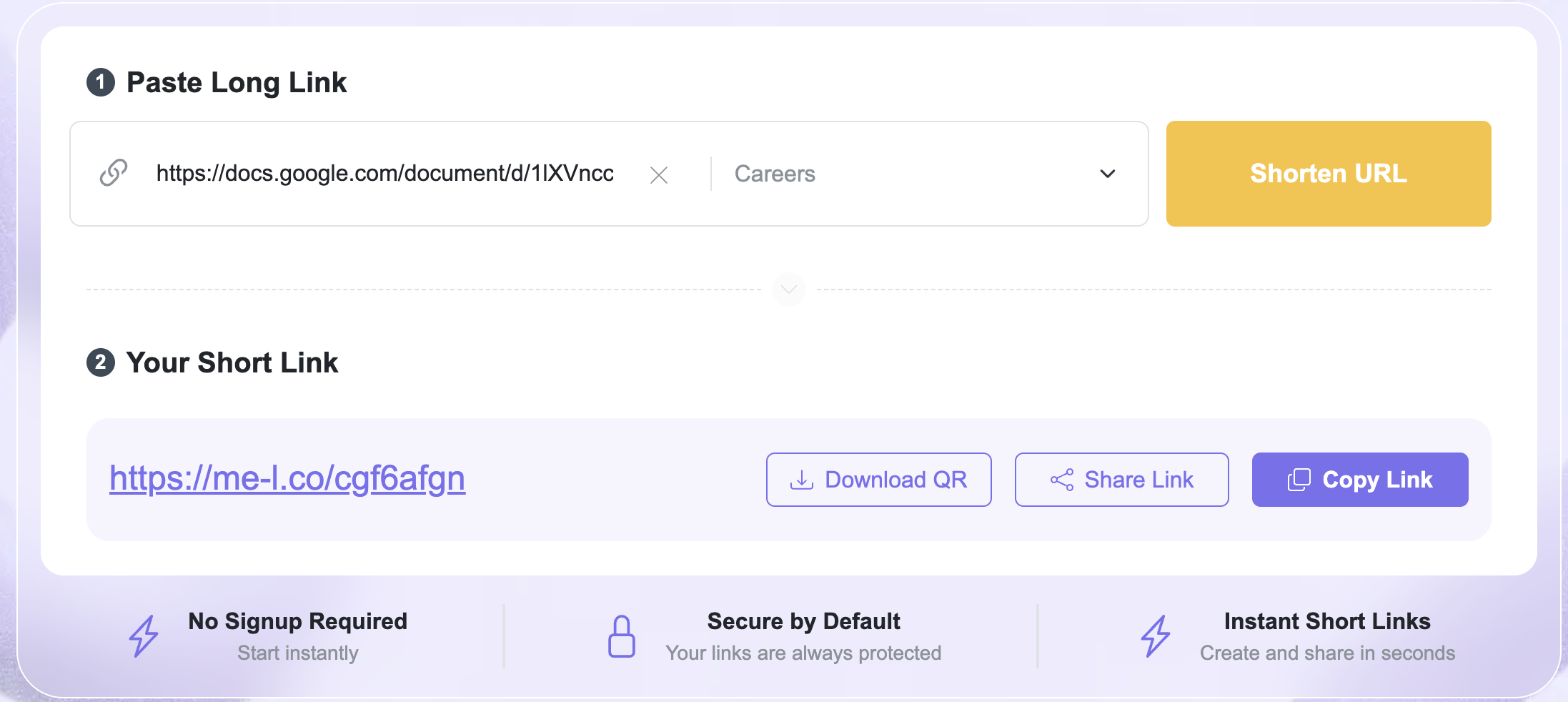
Creating a QR code for a link can be done in a few simple steps.
1. Choose the Destination URL
First, decide which page you want people to access.
For example: https://example.com/event
Make sure the page works correctly and is easy to use on a mobile device.
2. Create a Short Link
Instead of using the full URL, create a short link for the destination.
For example: me-l.co/event
A short link is easier to manage and can also be used outside the QR code, such as in social posts, emails, or printed materials.
3. Generate the QR Code
Use a QR Code Generator to create a QR code from your short link.
The basic workflow is:
- Create the short link.
- Enter or select the short link in the QR code generator.
- Generate the QR code.
- Download the QR code.
- Add it to your digital or printed material.
4. Test the QR Code
Before publishing or printing it, scan the QR code with a phone.
Check that:
- The code scans correctly.
- It opens the intended page.
- The destination works on mobile.
- The QR code is large enough to scan from the intended distance.
- The code remains readable after being placed in the design.
Testing is especially important for printed materials because correcting a QR code after printing can require replacing the entire material.
Where to Use QR Codes
QR codes can connect offline audiences to online content in many different situations.
Printed Materials
QR codes are useful on:
- Flyers
- Posters
- Business cards
- Brochures
- Product packaging
- Menus
- Restaurant table cards
- Retail displays
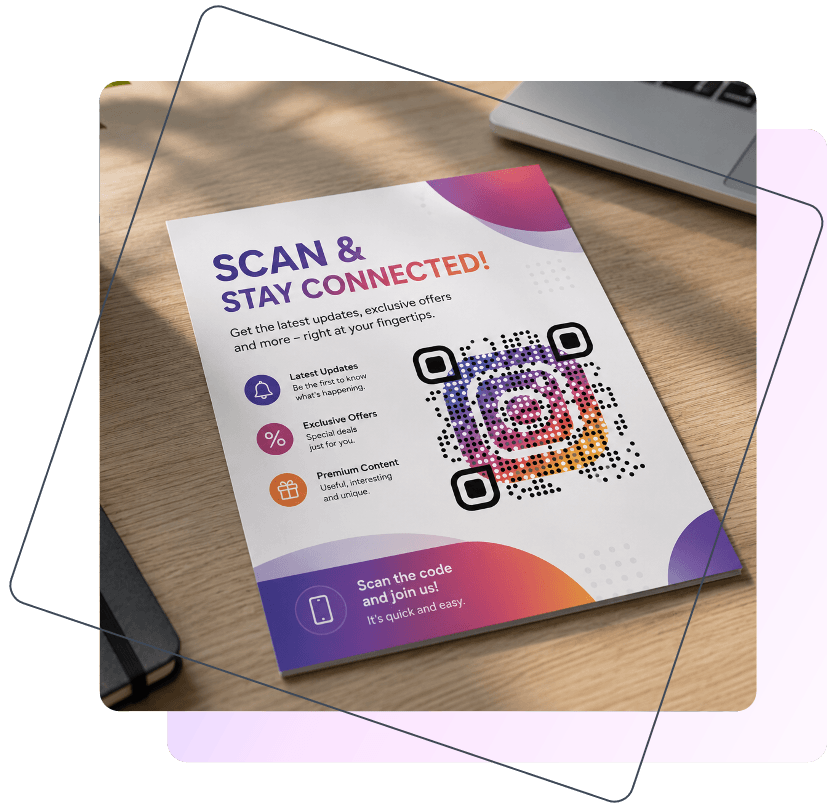
For example, a flyer can include a QR code that leads to an event registration page.
You can also use Short Links for Printed Materials when the same destination needs to be shared both offline and online.
Events
Event organizers can place QR codes on posters, tickets, banners, or promotional materials.
A code might lead to: me-l.co/event
which opens the event information or registration page. If the event details change, an editable short link can allow the destination to be updated without creating a completely new QR code.
Restaurants and Hospitality
A QR code can provide quick access to:
- Digital menus
- Reservation pages
- Special offers
- Customer feedback forms
- Restaurant websites
For example:
Scan to view the menu
→ QR code
→ me-l.co/menu
Product Packaging
Businesses can use QR codes to connect packaging with online information.
For example:
Scan for product instructions
→ QR code
→ me-l.co/instructions
The same QR code can remain on the packaging while the destination page is updated when necessary.
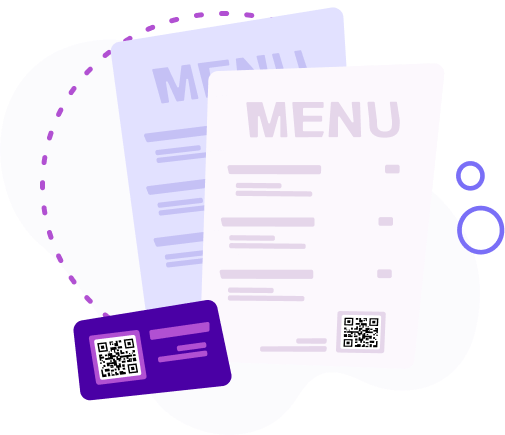
Business Cards
A QR code on a business card can lead to:
- A personal website
- Contact information
- A portfolio
- A booking page
- A link hub
- Social profiles
This can provide more information than a printed card can contain.
How to Track QR Activity
A QR code can tell you where the scan leads, but tracking the short link behind the QR code can provide additional information about link activity.
For example:
QR code → me-l.co/menu → online menu
When someone scans the code, the request passes through the short link before reaching the destination.
This makes it possible to monitor activity associated with the short link.
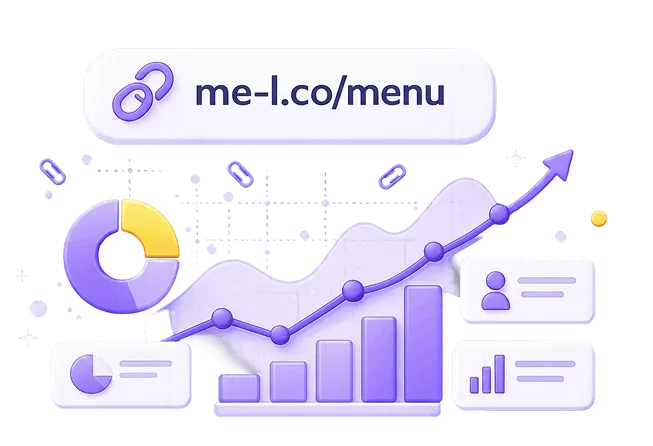
With Link Tracking, you can analyze link activity and use the data to understand how your QR-based campaigns perform.

Example: Tracking a Printed Campaign
Imagine that a business distributes 1,000 flyers with a QR code.
The QR code points to: me-l.co/promo
The short link leads to the promotion page. After distributing the flyers, you can monitor activity on the short link to see whether people are scanning and opening the linked content.
This can help you evaluate whether the printed campaign is generating online engagement.
Use Separate Links for Different QR Codes
If you use QR codes in several locations, consider creating a separate short link for each placement.
For example:
- me-l.co/store — in-store poster
- me-l.co/flyer — printed flyer
- me-l.co/package — product packaging
- me-l.co/event — event poster
Each QR code can then point to a different short link, even if all of them ultimately lead to the same website. This makes it easier to compare activity between placements.
Why Use a Short Link Behind a QR Code?
Using a short link as the destination of a QR code provides an additional layer of flexibility.
Without an editable short link, changing the destination may require creating and replacing the QR code.
With an editable short link, the QR code can remain the same while the destination changes.
For example:
QR code → me-l.co/menu
Initially: → example.com/menu-summer
Later: → example.com/menu-autumn
The QR code does not need to be reprinted because it still points to the same short link.
This can be particularly useful for posters, packaging, business cards, and other materials that remain in circulation for a long time.
When to Use ME-QR for Advanced QR Tools
For basic link QR codes, a simple QR generation workflow may be enough. For projects that require more advanced QR functionality, you can use ME-QR to create and manage QR codes for different types of content and use cases.
Some common ways to use ME-QR include:
ME-QR and ME-Short-Link can also be used together. For example, a short link can provide a manageable destination for a campaign, while ME-QR can be used when you need additional QR-specific functionality and customization.
Frequently Asked Questions
Yes. A QR code can be created from a URL that points to a web page or other supported online destination.
Manage your QR codes!
Collect all your QR codes in one place, view statistics, and change content by creating an account
Sign up


Was This Article Helpful?
Click on a star to rate it!
Thank you for your vote!

Average Rating: 5/5 Votes: 3
Be the first to rate this post!

Tech entrepreneur & digital strategist with over 9 years of experience in backend development and more than 5 years in executive leadership. Education Software and Web developer. More than 20 years of experience in software and web development.
View LinkedIn Profile